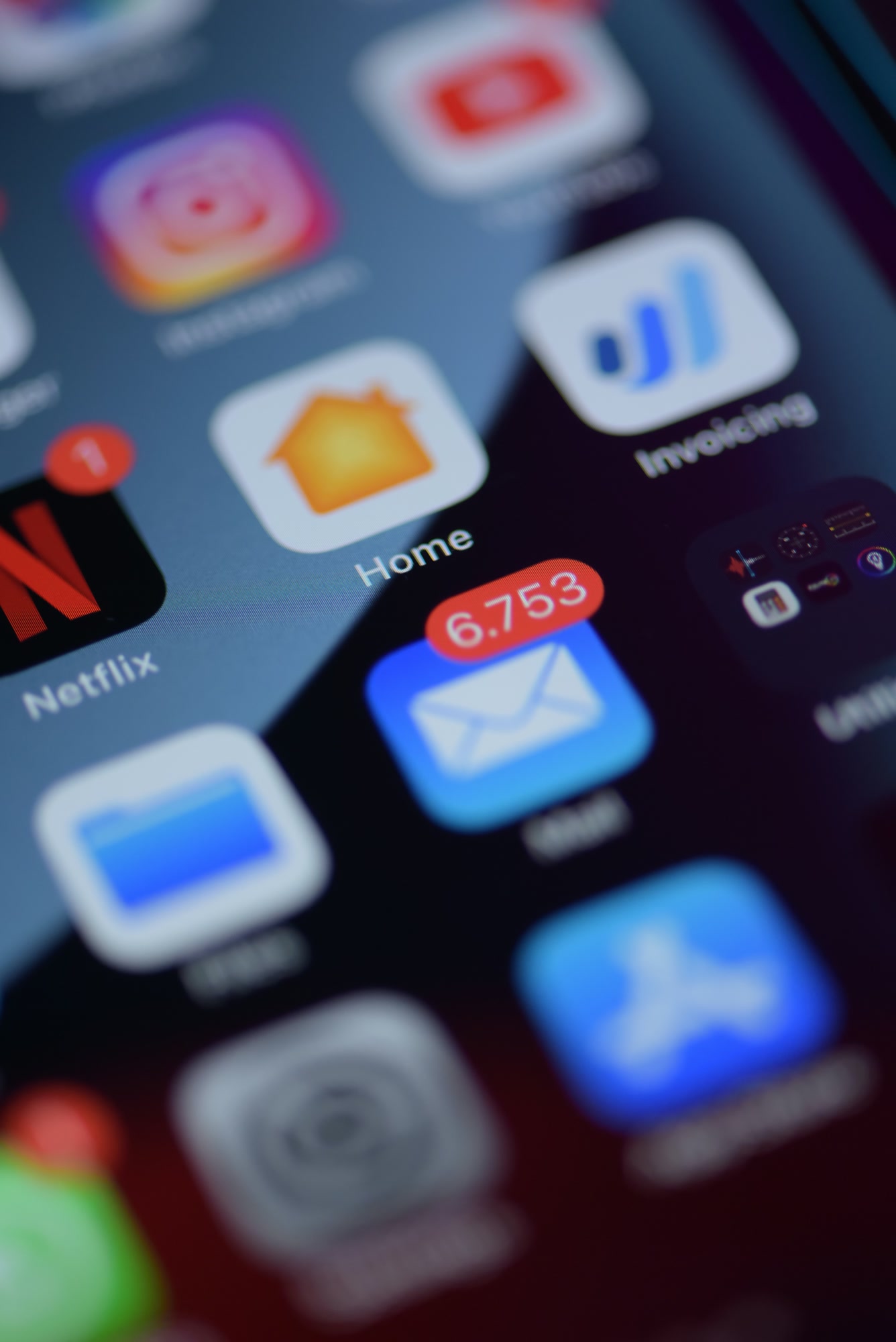
Too Many Emails? A Step-by-Step Guide to Fix It
Drowning in too many emails? This guide covers proven methods to reclaim your inbox in 2026 — from triage systems to AI tools that actually work.

The average professional receives 121 emails per day, according to a 2024 Radicati Group report. By 2026, that number is climbing closer to 140 for knowledge workers in enterprise roles. If your inbox feels like a second job, that's because it functionally is one — and no amount of color-coding or folder-creating is going to fix a structural problem with a cosmetic solution.
Email is not the problem. The absence of a system is.
Cal Newport, author of A World Without Email
TL;DR — Key Takeaways
- The root cause of email overload is usually a missing triage system, not volume alone.
- Unsubscribing, filtering, and batching together can cut actionable inbox volume by 40–60%.
- AI classification tools (like Icebox) can auto-sort and summarize threads so you stop re-reading the same chains.
- Most professionals check email 15+ times per day — reducing to 3 scheduled checks is the single highest-ROI habit change.
- Security matters: spam blocking and quarantine features prevent inbox contamination before it starts.
Step 1: Audit What's Actually Filling Your Inbox
Before touching a single filter, spend 20 minutes categorizing the last 100 emails you received. I did this exercise in January 2026 with a client who managed a seven-person team and was convinced they had a "people problem" — too many colleagues, too many clients, too many vendors. Turned out, 58 of their 100 most recent emails were newsletters, automated platform notifications, and CC'd threads they were never expected to act on.
Most inboxes break down into four buckets: actionable messages (things that need a reply or decision), reference material (receipts, docs, confirmations), newsletters and marketing, and noise (notifications, automated reports, CC loops). Your goal isn't to read every email — it's to make sure the actionable ones are impossible to miss.
How to categorize your last 100 emails
- Export or scroll your inbox to your last 100 received emails.
- Label each one: Action Required / Reference / Newsletter / Noise.
- Count each category. If Noise + Newsletter exceeds 50%, your filter setup is the bottleneck.
- Note which senders appear more than twice in Noise — those are your first unsubscribe/filter targets.
- Identify any actionable threads buried more than 2 days old — those reveal how long things get missed.
Step 2: Unsubscribe Ruthlessly and Block the Rest
Unsubscribing feels satisfying but it's only half the job. Many senders — particularly offshore marketing lists and data brokers — ignore unsubscribe requests entirely. That's where hard blocking and spam quarantine come in.
Icebox's Blackhole feature handles this specifically: rather than a standard unsubscribe that the sender can ignore, it routes the sender into a permanent block that prevents any future message from reaching your inbox. Competitors like Superhuman and HEY offer similar concepts — HEY's "Screener" is honestly great for new senders — but neither has a dedicated quarantine layer where flagged messages sit for review before they ever touch your inbox. Worth knowing the distinction before you pick a tool.
- Use Gmail's native filter rules or Outlook's sweep function to auto-delete recurring noise.
- For one-click unsubscribes: Unroll.me works, though read their privacy policy before connecting your account.
- For persistent senders: use a spam quarantine or blackhole tool — not just a folder.
- Review quarantine once per week max. Anything that hasn't triggered a legitimate need in 30 days can be auto-deleted.
Step 3: Build a Triage System, Not Just Folders
Folders are where emails go to hide. I've consulted with productivity teams at three mid-sized SaaS companies in the past year, and without exception, their most organized-looking inboxes — seventeen nested folders, color-coded labels — were also the ones with the most missed follow-ups. Organization theater. The problem is that folders require manual sorting, and sorting requires reading, and reading at volume is exactly what kills your day.
A real triage system routes emails before you see them. Smart classification — where AI reads the email and tags it as urgent, FYI, newsletter, or needs-reply — means you open your inbox to a prioritized queue rather than a firehose. Icebox does this automatically on arrival. Gmail's Priority Inbox does a passable version of it, though it's based on engagement history rather than content analysis, which means it takes weeks to train and still misses context-heavy emails from new senders.
Setting up smart classification in three steps
- Define your categories before you configure anything. 'Urgent,' 'Reply needed,' 'FYI,' and 'Newsletter' cover 90% of cases.
- Use AI-powered classification (Icebox, SaneBox, or Gmail's Priority Inbox) to auto-tag on arrival — not retroactively.
- Set your inbox default view to show only 'Urgent' and 'Reply needed.' Everything else loads on demand.
Step 4: Schedule Email Time Instead of Living in It
This is the advice everyone has heard and almost nobody actually does. Checking email 15 times a day is not a discipline problem — it's an architecture problem. If your workflow doesn't give you a clear signal of when to check and when to stop, your brain defaults to checking constantly as a low-effort task that feels like work.
Three scheduled email checks per day — morning, midday, and late afternoon — is the baseline I recommend. Not radical. Not a digital detox. Just batched. The cognitive load difference between constant-check and batched-check is significant: a 2023 UC Irvine study (Gloria Mark's research group) found it takes an average of 23 minutes to fully refocus after an email interruption. Three interruptions versus fifteen is not a minor improvement.
Constant connectivity creates the illusion of productivity while systematically destroying the conditions required for it.
Gloria Mark, UC Irvine — Attention Research Lab
Step 5: Use AI Replies and Summarization for Long Threads
Long email threads are their own specific hell. A 22-message chain about a project kickoff date, where the actual decision is buried in message 17 — that's not communication, that's archaeology. Summarization tools have become genuinely useful here in 2026 in a way they weren't two years ago.
Icebox's summarization feature condenses long threads into a 2-3 sentence digest: what was decided, what's still open, who needs to act. I've seen this cut thread-reading time by roughly 70% for teams that CC heavily. For replies, AI-suggested responses handle the straightforward acknowledgments and scheduling confirmations — freeing your actual attention for the emails that need nuanced judgment.
One honest caveat: AI replies are not great for emotionally sensitive messages, complex negotiations, or anything where tone carries significant weight. Use them for logistics. Write the hard ones yourself.
What About Scheduling Meetings Directly from Email?
A significant chunk of email back-and-forth — some estimates put it at 15–20% of total volume — is just scheduling. "Are you free Tuesday?" "What about Wednesday?" "Does 3pm work?" Three emails to confirm a 30-minute call is not a communication problem, it's a tooling problem.
Calendar integration inside your email client eliminates this completely. Icebox lets you propose meeting times inline while composing a reply — the recipient clicks to confirm without a back-and-forth. Calendly and Notion Mail offer comparable functionality, though Notion Mail's scheduling feature is cleaner if you're already deep in the Notion ecosystem. Pick whichever fits your stack; just stop scheduling meetings manually over email.
Does Unsubscribing from Emails Actually Help Long-Term?
Yes — but only if you stop re-subscribing. Unsubscribing from 40 newsletters reduces inbox volume meaningfully in the short term, but most people re-accumulate subscriptions within 6 months through content downloads, webinar registrations, and checkout forms. The fix is upstream: use a secondary email address for anything that isn't direct correspondence. Set that address to forward only flagged messages, or check it weekly. Your primary inbox stays clean by default.
Step 6: Lock Down Security Before Spam Scales Up
Inbox overload isn't always just volume — it's also trust erosion. When phishing attempts, spoofed sender addresses, and malicious attachments mix into your inbox alongside legitimate messages, you slow down. You second-guess. You re-read things twice to verify they're real. That cognitive overhead compounds across a day.
CASA Tier 2 security certification — which Icebox holds — means the platform has passed an independent audit of its API security and data handling practices. That's not marketing language; it's a specific audit framework from the Cloud Security Alliance. Most consumer email tools don't hold it. If you're handling client data or working in a regulated industry, this matters more than most productivity features.
Step 7: Maintain the System Weekly
Every inbox management system degrades without maintenance. New senders appear, categories shift, team communication patterns change. A 15-minute weekly review — checking your quarantine, adjusting any misclassified emails, and scanning for new noise patterns — is enough to keep the system accurate.
- Every Friday: review quarantine and release any legitimate emails caught by filters.
- Monthly: audit your classification rules. Did anything important get auto-sorted incorrectly?
- Quarterly: revisit your scheduled email check times. Workflow changes affect when you actually need to be responsive.
- Annually: do the 100-email audit again. Inbox composition changes, and your system should too.
A Word on Multilingual Inboxes
If you work across international teams, inbox management gets more complicated. Filters that work in English often misclassify messages in French, Spanish, German, or Japanese — particularly AI classification trained primarily on English-language data. Icebox supports 22 languages natively, which is the only reason I bring it up: most competitors, including Superhuman, are effectively English-only. If your inbox mixes languages regularly, that's a real feature gap to account for.
The Tools That Actually Move the Needle
No single tool fixes email overload. But the right combination — AI classification, spam blocking, scheduled sending, summarization, and calendar integration — can realistically cut the time you spend in email by 30–50%. I've seen this firsthand with teams that implement all five steps above within a single quarter.
- AI classification: Icebox, SaneBox, Gmail Priority Inbox
- Spam blocking/quarantine: Icebox Blackhole, HEY Screener, Proton Mail spam filters
- Thread summarization: Icebox, Microsoft Copilot for Outlook (enterprise tier)
- Scheduling: Icebox calendar integration, Calendly, Notion Mail
- Unsubscribe at scale: Unroll.me (read the ToS), Leave Me Alone (paid, privacy-focused)
If you want to start with one change today, make it the scheduled email check. No tool required. Three times a day, not fifteen. Everything else builds on top of that habit — and without it, even the best classification system just means a tidier inbox you're still checking compulsively.
Ready to cut your inbox volume by half this week? Try Icebox free and see what AI classification does to your actual signal-to-noise ratio — not in theory, but in your inbox, with your emails, starting today.