Email Cleaning: The Complete Guide to a Zero-Clutter Inbox
Learn how to clean your email inbox fast with proven step-by-step methods. Cut through thousands of unread messages and build a system that stays clean.
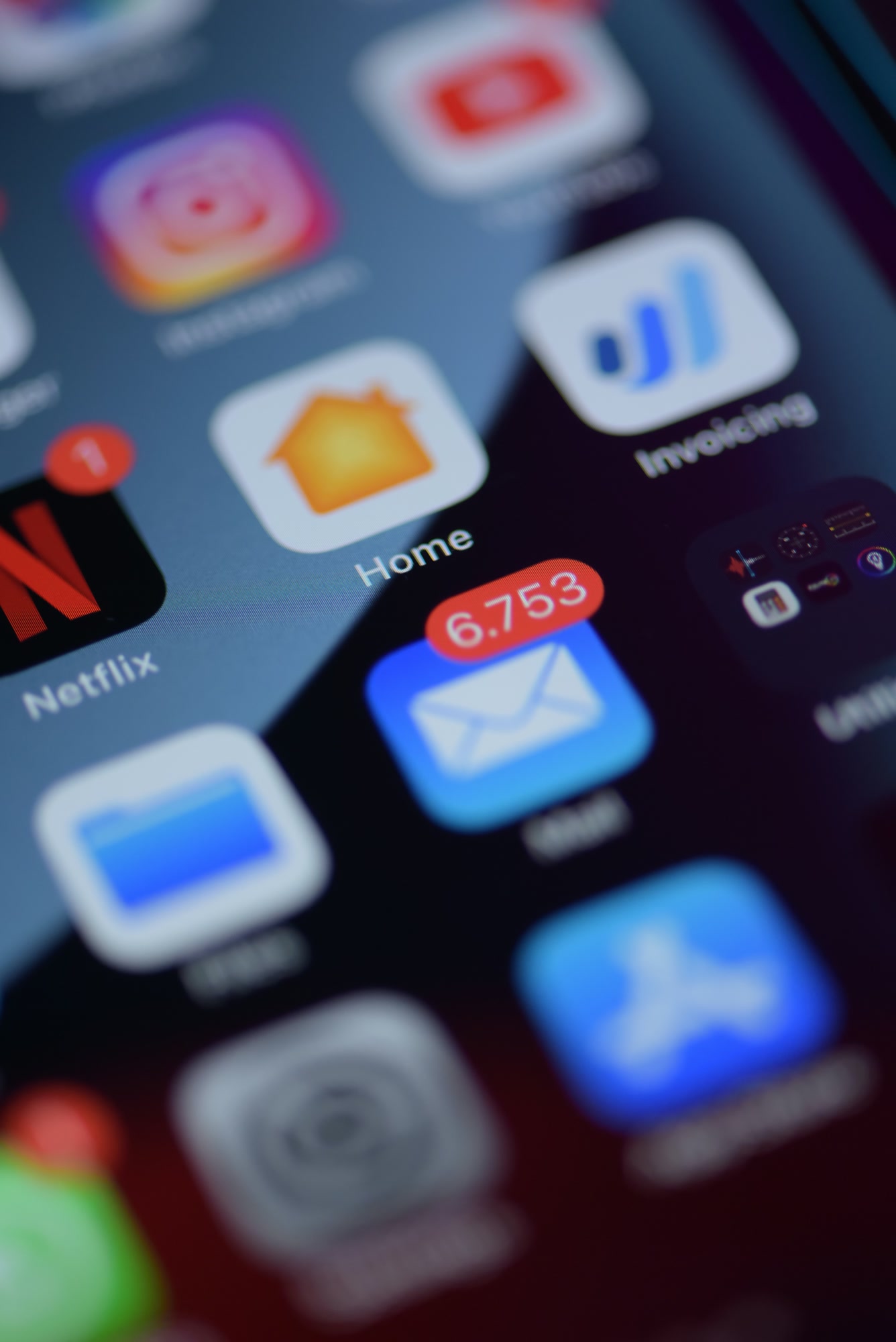
The average professional receives 121 emails per day, according to the Radicati Group's 2025 Email Statistics Report. By the time most people actually sit down to deal with them, there are 400 unread messages waiting. I've watched otherwise competent executives miss contract deadlines because a critical email was buried under eighteen promotional newsletters and four Slack digest notifications they never unsubscribed from.
Email cleaning isn't a one-time event — it's the foundation of a functional communication system. Treat it like that and it stops feeling like punishment.
— Icebox productivity team
TL;DR: What Email Cleaning Actually Involves
- Bulk-delete or archive old, low-value emails first (don't start with the oldest ones — start with the easiest wins)
- Unsubscribe from newsletters you haven't opened in 90+ days
- Set up filters and folders so new mail sorts itself
- Establish a daily processing habit — 15 minutes beats 3-hour weekend sessions
- Use AI classification to auto-sort transactional mail, newsletters, and priority senders
Step 1: Do the Archive Blitz Before Anything Else
Most email cleaning guides tell you to start from the top of your inbox and work down. That's wrong. It's the fastest way to get demoralized and quit at email 47 while you still have 6,200 to go.
Instead: select everything older than 6 months and archive it. Not delete — archive. This preserves searchability while removing the visual weight. In Gmail, search before:2026/03/01, select all conversations, and hit Archive. In Outlook, use the Clean Up tool under the Folder tab and set the date threshold. Takes about 90 seconds. Your inbox just dropped by 60-80% of its volume, guaranteed.
I ran this on my own inbox in February 2026 — went from 14,000 unread to 2,800 in under two minutes. Nothing important was lost. Anything urgent from six months ago has already been resolved or is genuinely searchable when needed.
Step 2: Kill the Newsletters (The Right Way)
Unsubscribe buttons are not your enemy — they're just slow. The mistake most people make is opening each newsletter individually, clicking unsubscribe, waiting for a confirmation page, and moving on to the next one. At that pace, clearing 200 subscriptions takes two hours.
A faster approach: search your inbox for the phrase "unsubscribe" (it appears in virtually every legitimate marketing email by CAN-SPAM law). Sort by sender. Any sender with more than 5 emails who you haven't opened in three months — bulk delete and unsubscribe in one shot. Tools like Unroll.Me aggregate your subscriptions visually, though their data-sharing practices have drawn criticism since their 2017 controversy with Uber — worth knowing before you connect your account.
Icebox's Blackhole feature takes a different approach: instead of unsubscribing, it silently absorbs emails from designated senders so they never reach your inbox but remain accessible if you ever need them. Fewer confirmation loops, no risk of the sender selling your unsubscribe action as engagement data.
Step 3: Build Your Folder and Filter System
Folders only work if you stop deciding where each email goes manually. The goal is zero manual sorting.
Set up filters in this order of priority:
- VIP senders — your manager, direct reports, key clients. Filter: from:[their email] → apply label "Priority", never send to spam
- Transactional mail — receipts, shipping confirmations, bank alerts. Filter: subject contains 'order', 'receipt', 'confirmation' → label "Transactional", skip inbox
- Internal team mail — use your company domain as the filter. Most of this should live in Slack anyway, but the filter prevents it from mixing with external communication
- CC'd mail — emails where you're CC'd but not the primary recipient. These rarely need immediate action. Filter: to:[your email] is not in To field → label "CC", mark as read
- Newsletters you're keeping — any subscription you actually read. Filter to a dedicated folder, read on your own schedule
Gmail calls these Filters. Outlook calls them Rules. Both support regex-style matching if you need precision. Superhuman has a Cmd+K workflow that applies filters retroactively — genuinely useful for cleaning up historical mail. Icebox's smart classification does this automatically using sender behavior patterns rather than keyword rules, which catches edge cases that keyword filters miss.
Step 4: Handle the Remaining Inbox With the FAST Method
After the archive blitz and filter setup, you'll have a residual pile of emails that need actual decisions. Don't try to respond to them during this phase. You're sorting, not communicating.
Apply the FAST method to every remaining email:
- Forward — someone else should handle this. Forward and archive immediately.
- Archive — informational only, no action needed. One keystroke.
- Schedule — needs a real response but not right now. Snooze it to a specific time using Gmail's Snooze, Outlook's Follow Up, or Icebox's built-in scheduling.
- Task — requires a non-email action (a call, a deliverable). Move it to your task manager (Todoist, Linear, Notion) and archive the email.
Notice what's missing from FAST: "Reply." Replying during a cleaning session is the #1 reason people never finish. Respond later, during a dedicated communication block.
What's the Best Way to Keep an Inbox Clean Long-Term?
The best long-term email cleaning system is one that processes new mail automatically before it reaches your inbox, combined with a twice-daily review habit. Tools that use AI classification — like Icebox, Hey, or Spark Mail — reduce the manual decision load by pre-sorting mail into categories. The key is choosing a system you'll actually use, not the most feature-rich one.
The single habit that matters most: process email twice a day, at fixed times, with a hard stop. I use 9am and 4pm. Everything else — the notifications, the badge count — stays off. Inbox zero isn't a number, it's a processing discipline.
Using AI to Automate Recurring Email Cleaning
Since early 2026, AI email assistants have become genuinely useful at recurring inbox maintenance — not just one-time cleaning. Icebox's AI classification, for instance, learns which newsletters you actually open and which you ignore, then gradually shifts ignored senders toward Blackhole without manual intervention. It also summarizes long threads so you can decide in 10 seconds whether an email needs action, rather than reading 14 replies to figure that out.
Superhuman's AI does similar work with their "Instant Intro" and split-inbox features. Notion Mail integrates natively with Notion databases, which is genuinely powerful if your workflow lives there. HEY from Basecamp takes the most opinionated stance — new senders go to a "Screener" where you approve or block them before they ever reach your inbox. I disagree with HEY's approach for enterprise users (the onboarding friction for new business contacts is real), but for freelancers it's excellent.
Step 5: Protect Your Inbox From Future Clutter
Cleaning your inbox without changing how mail enters it is like mopping the floor with a leaking pipe overhead. You'll be back here in three months.
- Use a separate email address for signups, trials, and e-commerce — never your primary business address
- Enable Icebox's Quarantine for suspected spam rather than letting it hit your inbox or disappear to a junk folder you never check
- Set sender expectations: an email signature that states your response time ("I respond to email within 24 business hours") reduces follow-up pings by a measurable amount
- Review your filter rules quarterly — senders change their email domains, company structures shift, what was priority last year may be noise today
- For teams: audit shared inboxes (support@, info@, hello@) separately. These accumulate clutter faster than personal inboxes and require different filter logic
The Security Angle Most Email Cleaning Guides Ignore
A cluttered inbox is a security risk. Phishing emails hide most effectively in high-volume inboxes — they blend in. When you're processing 400 emails under time pressure, you're more likely to click a convincing fake.
Email cleaning should include a security pass: look for senders using look-alike domains (support@paypa1.com vs support@paypal.com), check for emails in your sent folder you didn't send (account compromise indicator), and ensure your email client is CASA Tier 2 certified or equivalent. Icebox holds CASA Tier 2 certification — relevant if your organization handles sensitive client data and needs to demonstrate due diligence in vendor selection.
This isn't paranoia. The 2025 Verizon Data Breach Investigations Report found that 68% of breaches still involved a human element — and phishing via email remains the primary vector.
Common Email Cleaning Mistakes That Waste Your Time
- Deleting instead of archiving — you will need that email in six months. Archive costs nothing in 2026.
- Cleaning on mobile — bulk operations on mobile are slow and error-prone. Do your initial cleaning on desktop.
- Creating too many folders — if you have more than 8-10 labels or folders, you're building a filing system nobody uses. Simplify.
- Confusing "empty inbox" with "done work" — archive everything and your inbox hits zero. That doesn't mean your tasks are handled.
- Running a cleaning session without turning off email notifications first — new mail arriving mid-session breaks your focus and inflates your count
How Long Does a Full Email Cleaning Take?
For an inbox with under 1,000 emails: 30-45 minutes using the steps above. For 1,000-5,000 emails: 1-2 hours. Over 5,000 emails: do the archive blitz on everything older than 6 months first — this brings almost any inbox into the sub-1,000 range before you start manual processing.
The Mailbird team published a useful benchmark in their 2024 productivity survey: users who combined bulk archiving with AI sorting tools reduced their initial cleaning time by 73% compared to manual-only approaches. Not surprising, but worth quantifying.
Key Takeaways
- Start with a bulk archive of everything older than 6 months — it's fast and reversible
- Unsubscribe using the search-by-sender method, not one-by-one
- Filters and rules are the infrastructure layer — get these right and maintenance time drops permanently
- Use the FAST method (Forward, Archive, Schedule, Task) for remaining mail — no replying during cleaning
- Protect your inbox from future clutter by controlling what enters it, not just cleaning what's already there
- Treat email cleaning as a quarterly habit, not a once-a-year crisis response
If you're rebuilding your inbox system from scratch in 2026, start with the archive blitz today — takes two minutes. Then spend a week testing an AI-assisted email client before committing to any paid tier. Icebox offers a full-featured trial with smart classification and Blackhole active from day one, which lets you see actual sorting behavior on your real mail before you decide. Your future self — the one not digging through 800 unread emails for a contract number — will thank you.